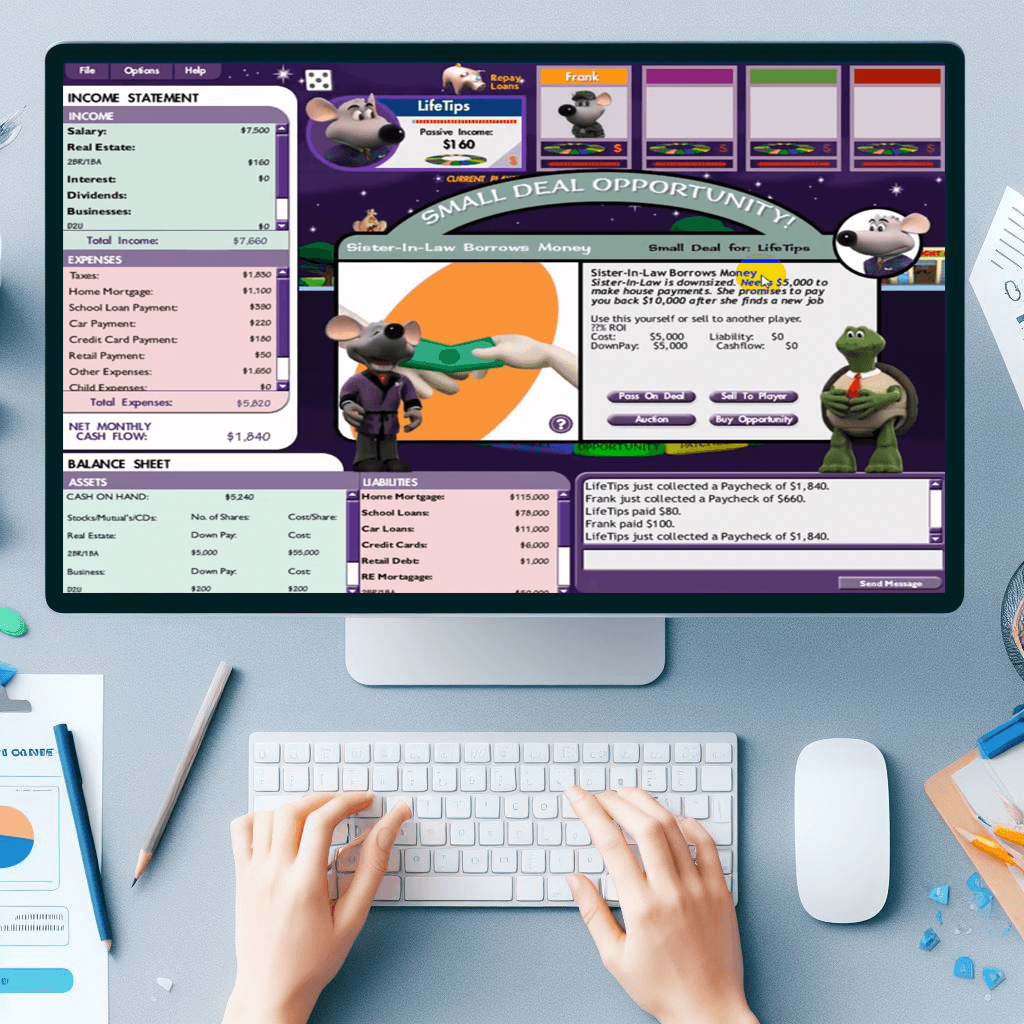
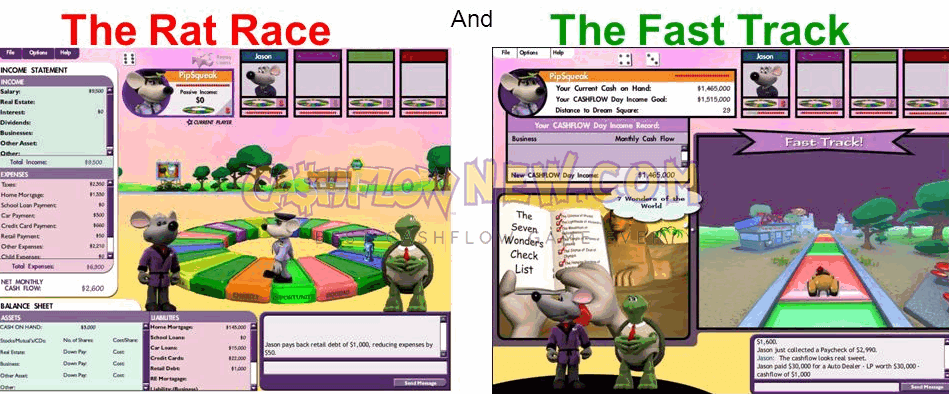
Many players want to run the CASHFLOW e-game on a MacBook or iMac. Because the 101 and 202 games were made for Windows, you can’t double-click them on macOS. You can still play them, though. Here are the options, from simplest to most robust.
Option 1: A Wine-based compatibility tool
Wine is free software that lets many Windows programs run on macOS without installing Windows. Commercial and community tools built on Wine add a friendlier interface.
- Install a Wine-based tool on your Mac.
- Create a new Windows environment (often called a “bottle” or “prefix”).
- Run the CASHFLOW installer inside that environment and follow our installation tutorial.
- Launch the game from the tool’s program list.
Pros: free or low cost, no Windows license. Cons: older games sometimes need extra settings, and results vary by macOS version.
Option 2: A Windows virtual machine
Virtualization software runs a full copy of Windows in a window on your Mac. This is the most reliable option because the game runs on real Windows.
- Install virtualization software and set up a Windows virtual machine.
- Inside Windows, install CASHFLOW using the standard PC tutorial.
- Play in a window or full screen.
Pros: highest compatibility. Cons: needs a Windows license and more disk space. On Apple Silicon Macs, use Windows on ARM, which runs most older Windows programs through built-in emulation.
Option 3: Boot Camp (older Intel Macs only)
If your Mac has an Intel processor, Boot Camp can install Windows on a separate partition. You restart into Windows to play. Apple Silicon Macs (M1 and newer) do not support Boot Camp.
Playing CASHFLOW for Kids on Mac
The CASHFLOW for Kids package includes a macOS installer, so families on a Mac can use it directly.
Troubleshooting tips
- Screen too small or stretched: the game uses an 800×600 display, so run it in a window rather than full screen.
- No sound: check the audio settings of your Wine tool or virtual machine.
- Installer won’t start: make sure you run it inside the Windows environment, not directly in macOS.
Quick rules refresher
Once the game is running: collect your cash flow on every Paycheck, use Opportunity spaces to buy Small Deals (up to $5,000) or Big Deals ($6,000+), sell assets when a Market card offers a good price, pay mandatory Doodads, and consider Charity (10% of income for two dice on three turns). The full rules are in our CASHFLOW 101 & 202 rules guide.
FAQ
Is there a Mac version of CASHFLOW 101 and 202?
No. The 101 and 202 e-games are Windows programs. On a Mac you can run them with a Wine-based tool or a Windows virtual machine.
Does CASHFLOW work on Apple Silicon Macs?
Yes, through a Wine-based tool or a Windows on ARM virtual machine. Boot Camp is not available on Apple Silicon.
Is CASHFLOW for Kids available for Mac?
Yes. The CASHFLOW for Kids package includes a macOS installer.
Play CASHFLOW 101 & 202 on your PC
Get the Windows e-game edition with a step-by-step installation tutorial and video lessons, so you can practice these strategies tonight.